User manual for AI smart glasses
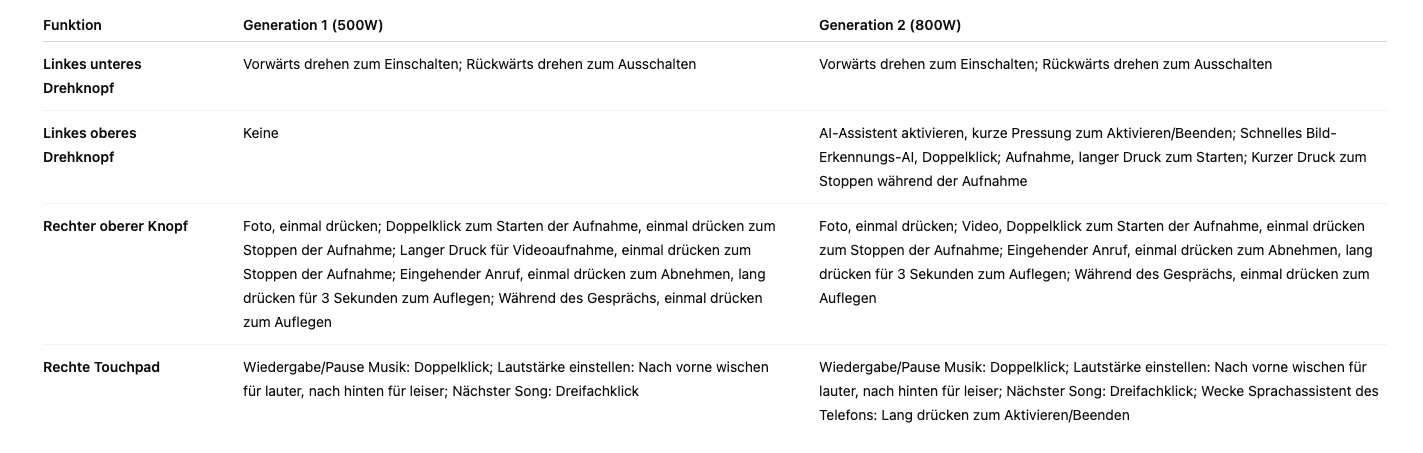
Quick Overview of the Buttons
1. What do I need to use the AI Smart Glasses?
To operate the AI Smart Glasses, the glasses must be connected to a smartphone and the HeyCyan app. Here is the complete list of requirements:
-
A smartphone with the latest operating system: Android 8.1 or higher (with location services enabled) or iPhone 6S or higher, iOS 13 or later.
-
Wireless network
-
USB-C charger
-
HeyCyan app (can be downloaded from the App Store or downloaded by scanning the QR code)

2. How do I turn the glasses on and off?
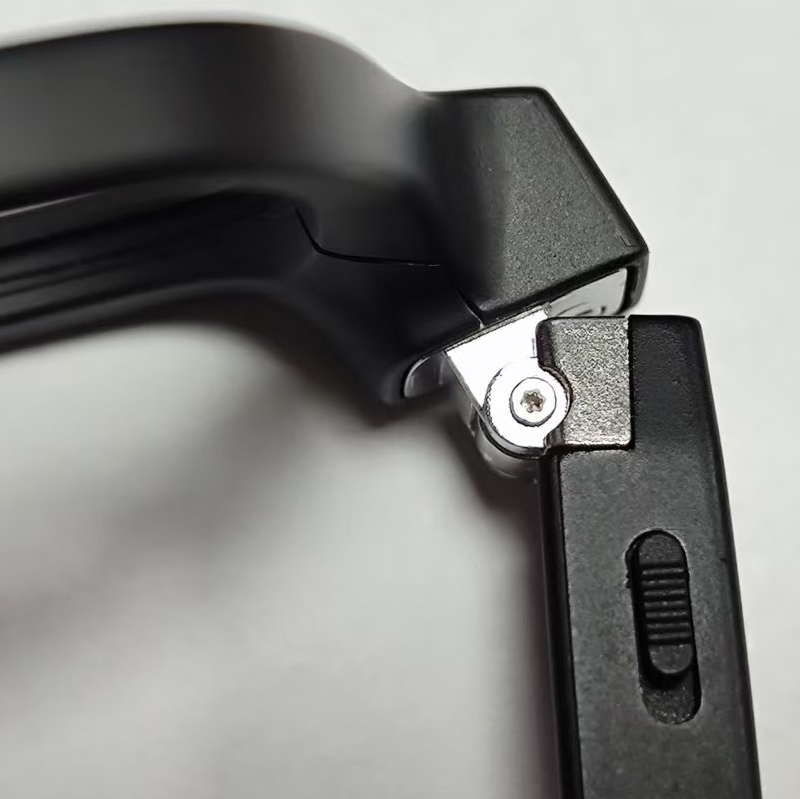
The power switch is located on the underside of the left arm, near the frame.
-
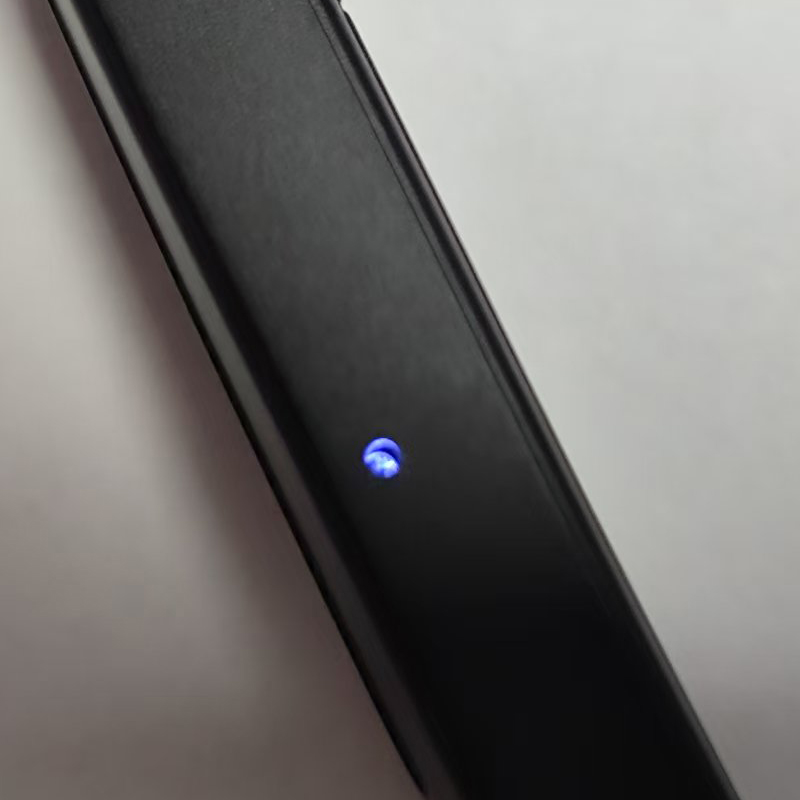
Turning On: Slide the switch towards the lens. When the glasses are turned on, a sound will play and a "power on" notification will appear. The LED indicator under the right temple will blink blue. Once the glasses are connected to the app, the blinking will stop.
-
Turning Off: Slide the switch all the way back. When the glasses are turned off, the LED indicator under the right temple will blink red, accompanied by a sound that says "power off."
3. How do I connect my glasses via Bluetooth?
If you have already connected the glasses to the phone, they should automatically pair again. For the first connection, proceed as follows:
-
Turn on Bluetooth on your phone and turn on the glasses.
-
Open the HeyCyan app and connect the device, then proceed. The device should appear, and you can click "Connect."
If your glasses cannot connect to the app, try the following:
-
Forget the device in your phone's Bluetooth menu and pair it again.
-
Close the HeyCyan app and uninstall it.
-
Download the HeyCyan app from the App Store.
-
Make sure your glasses are fully charged.
-
Enable Bluetooth on your phone and turn on the glasses.
-
Open the HeyCyan app to connect and update to the latest app version.
4. How do I charge my AI Smart Glasses?
-
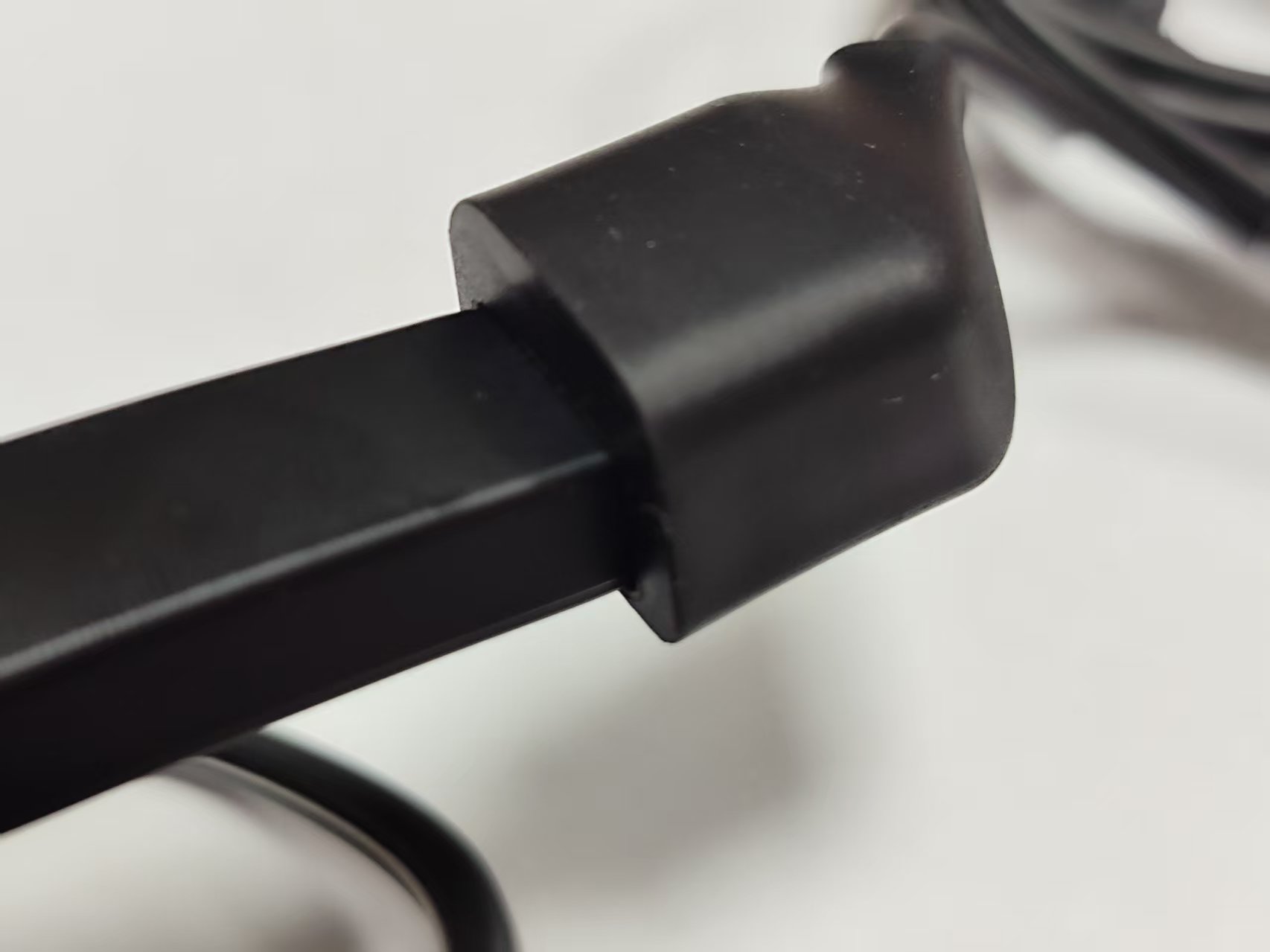
1st Generation AI Smart Glasses: Insert the right temple into the charging port as shown in the image and connect it to a power source.
-
2nd Generation AI Smart Glasses: Attach the right temple to the charging port using magnetic suction and connect it to a power source.
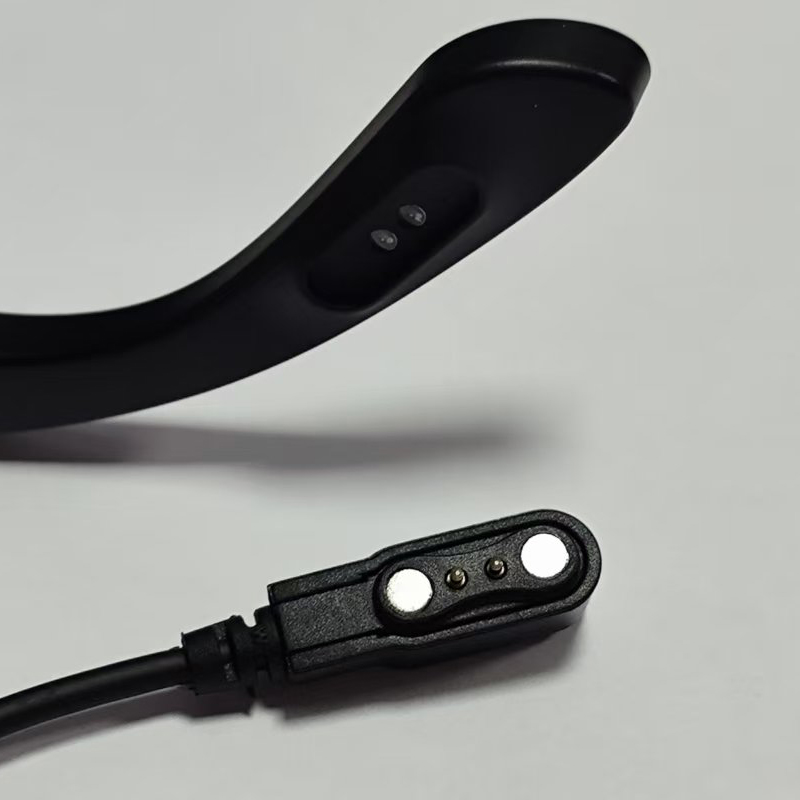
During the charging process, the indicator will show a red light. Once the glasses are fully charged, the light will turn blue.
5. How long can I use the glasses after a full charge? / How long does it take to fully charge the glasses?
-
Maximum video recording time: 12 minutes per clip
-
Continuous recording time: 3 hours
-
Continuous music playback: 10 hours
-
Standby time: 120 hours
Actual battery life may vary depending on usage and other factors. A full charge takes about 70 minutes.
6. How do I take photos or videos with my AI Smart Glasses?
There are two ways to take photos with the AI Smart Glasses:
-
One-click control:
-
Take a photo: Press the button above the right temple. While taking the photo, the white notification LED on the left front will blink and an acoustic signal will sound.
-
Record a video:
-
1st Generation AI Smart Glasses: Press the button above the right temple and hold it down to record a video (maximum 12 minutes). Press again to stop recording. During recording, the white notification LED on the left front remains on.
-
2nd Generation AI Smart Glasses: Press the button above the right temple twice to start recording a video (maximum 12 minutes). Press again to stop recording. During recording, the white notification LED on the left front remains on.
-
-
-
Hands-free voice control:
Once the AI voice assistant is activated with the wake word, you can take photos with voice commands. Just say, "Hey Cyan, take a photo."
The AI voice assistant currently only supports photo taking. To record videos, please use the button.
7. How do I wake up the AI voice assistant?
-
1st Generation AI Smart Glasses: Wake the voice assistant with the wake word "Hey Cyan." Use English to activate the voice assistant. The wake tone is as follows: (Note that the wake word must be pronounced the same in all languages). You will hear a confirmation tone that the assistant has been activated.
-
2nd Generation AI Smart Glasses: You can activate the voice assistant with voice commands or by pressing the button above the left temple. Press again to exit the voice assistant.
8. Why can't the AI voice assistant recognize my question?
Before asking a question, make sure the AI voice assistant is activated. Try to keep questions short and avoid asking long questions at once. Do not pause, as only the question before the pause will be recognized. Use only one sentence for each question. You must say "Hey Cyan" each time to activate the voice assistant.
9. How do I record audio?
-
1st Generation AI Smart Glasses: Press the button above the right temple twice to start recording. Press again to stop recording.
-
2nd Generation AI Smart Glasses: Press and hold the button above the left temple to start recording. Press again to stop recording.
10. Where can I control the volume? What functions does the touchpad have?
On the outside of the right temple, there is a touchpad:
-
Swipe forward to increase the volume, swipe backward to decrease the volume.
-
Double-click to play/pause music.
-
Triple-click to skip to the next song.
-
2nd Generation AI Smart Glasses: Press and hold the touchpad to activate the phone's voice assistant. Press again to exit the voice assistant.
11. How do I answer or end a call? How can I make a call?
-
Answer a call: Press the button above the right temple to answer the call. Hold it for 2 seconds to end the call.
-
Make a call: You can only make calls with the voice assistant on the 2nd Generation Smart Glasses. Press and hold the outer touchpad to activate the phone's voice assistant, and then use voice commands to make the call.
12. How do I import media? How do I transfer media from the glasses to the smartphone?
After recording, the app will show how many items are available for import to your phone. Click "Import" to view the media in the app album. Click on the media you want to download and select the "Save" button to import it to your smartphone.
13. How do I share photos and videos?
You can click on the desired media directly in the app and press the "Share" button.
You can also download the media to your phone and then share it.
14. Can I use the assistant without "Hey Cyan"?
-
2nd Generation AI Smart Glasses: You can press the button above the left temple to activate the voice assistant, or double-press the same button to activate quick object recognition.
-
1st Generation AI Smart Glasses: You can only wake the assistant with your voice.
15. Can't the software be updated?
Try the following steps:
- Restore factory settings
- Disconnect Bluetooth
- Delete HeyCyan
- Reinstall HeyCyan
- Open HeyCyan, reconnect Bluetooth
- Firmware upgrade